
Navigating the HaloNinjas Support Portal
A streamlined process for both Break/Fix support requests and New Work implementation requests — from raising a ticket to go-live and Hypercare.
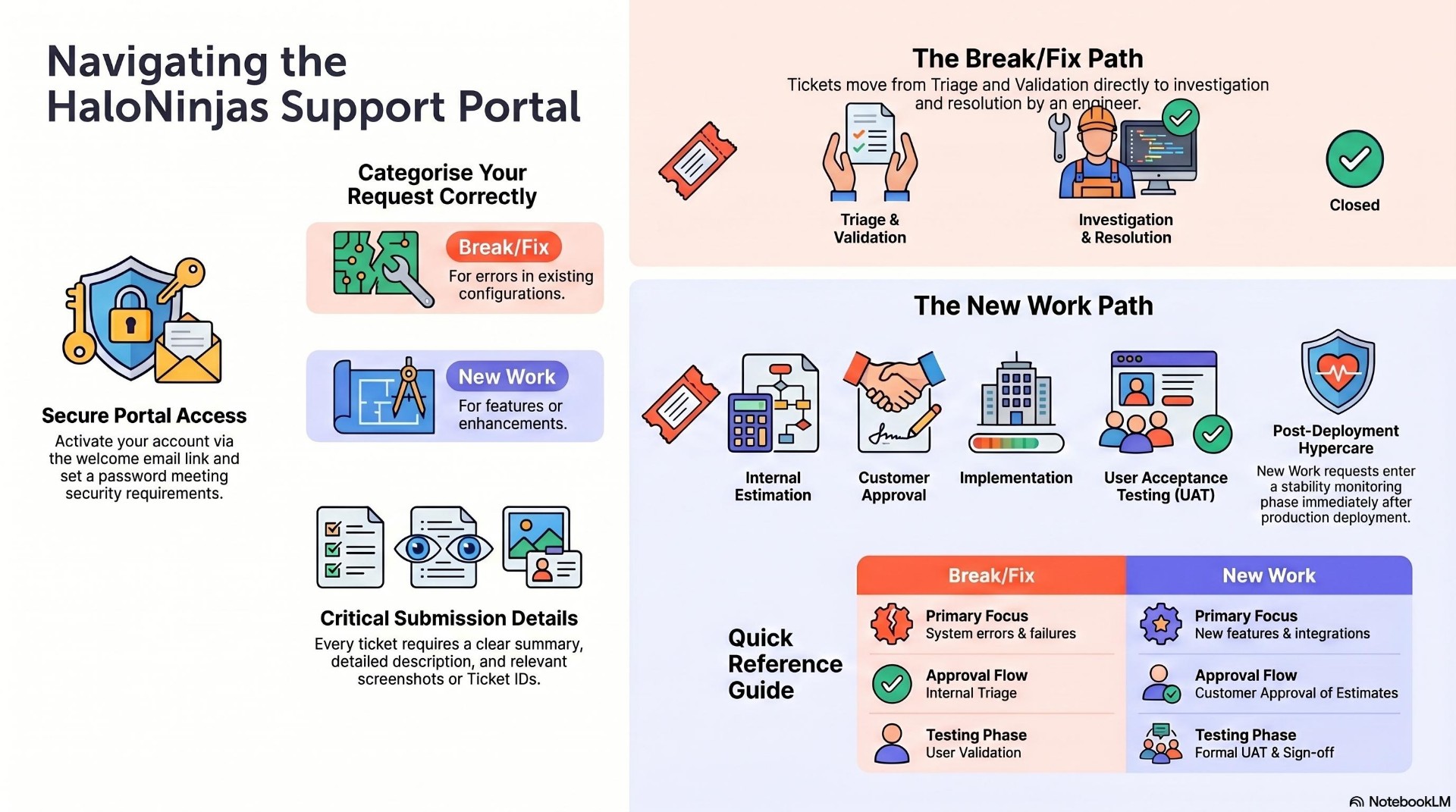
At a Glance
The full support journey in one view — access, ticket categorisation, and both delivery paths.
Portal Walkthrough
A short video tour of the HaloNinjas Support Portal.
1. Accessing the Support Portal
Get set up in three quick steps.
Welcome Email
Once your account is created, you will receive a welcome email containing your portal access details, a password creation link, and the portal login URL.
Reset Your Password
Click the password reset link in the welcome email and set a password that meets your organisation's security requirements.
Log In to the Portal
Open the Support Portal login page, enter your email and password, and sign in to access the portal homepage.
2. Raising a Support Ticket
From the portal homepage, select Raise a Support Ticket and complete the submission form. Provide as much detail as possible to help us resolve your request quickly.
Every ticket should include:
3. Choose the Right Category
Break/Fix
For issues within your existing Halo environment.
- System errors
- Configuration issues
- Workflow failures
- Access or permission issues
- Existing functionality not working as expected
New Work
For new features, enhancements and scoped implementation.
- A new feature
- Additional configuration
- Workflow enhancements
- Integrations
- New forms or automations
- Any scoped implementation activity
4. Break/Fix Ticket Lifecycle
A direct path from triage through to resolution and closure.
Triage Review
Our support team reviews and validates the request, confirming whether it is a genuine Break/Fix issue or a New Work enhancement.
In Progress
An engineer is assigned to investigate and resolve the issue. Progress updates are provided directly through the ticket.
Resolution
The ticket is marked Resolved and you are notified. You are encouraged to validate the fix and confirm the issue is resolved.
Closure or Reopening
Confirm the resolution to close the ticket, or reopen it directly from the portal if further review is required.
5. New Work Ticket Lifecycle
From estimation and approval through delivery, UAT, go-live and Hypercare.
Ticket Review
Initial internal review of the submitted request before entering the approval and estimation process.
Estimation Phase
The delivery team assesses scope, complexity and effort, then sends the estimation to you via the portal.
Customer Approval
Review the estimation and approve, or reject with feedback to send it back for reassessment.
Implementation
The approved work is completed by the delivery team with progress updates through the ticket.
User Acceptance Testing
Review and test the delivered functionality, logging any issues or feedback against the ticket.
Go Live
Approved changes are migrated to production and final sign-off activities are completed.
Hypercare Support
Additional monitoring and support immediately after go-live to ensure stability and resolve any post-deployment concerns.
Project Closure
Once Hypercare is complete, the project is marked Closed and final documentation is delivered.
6. Best Practice Recommendations
Help us deliver your requests efficiently by following these guidelines on every submission.
Need Help?
If you experience any issues accessing the portal or require assistance submitting a request, contact the HaloNinjas team through the portal or your designated account contact.
Ready to Get Started?
Request access to the HaloNinjas Support Portal and start raising and tracking tickets in minutes.